You get a WordPress REST API key for AI by creating an application password in your WordPress profile and giving the AI your username with it. As of October 2026, the only key WordPress gives you for pages and posts is the application password. Application passwords are built into WordPress 5.6 and later, and into WordPress.com sites with plugins enabled. IvI SEO gave Claude an application password to upload the content for 162 pages to a UK hire company's WordPress.com site.
First, three bits of jargon in plain English. The REST API is the back door built into WordPress that lets software add and edit content on your site. An application password is a separate password you make yourself, for one app or AI, to get through that door. You don't need a developer or a plugin, and it costs nothing. Your username is simply the name on your WordPress account, the one shown on your profile. That's all you need.
Make it
1. Log in to wp-admin (your WordPress dashboard).
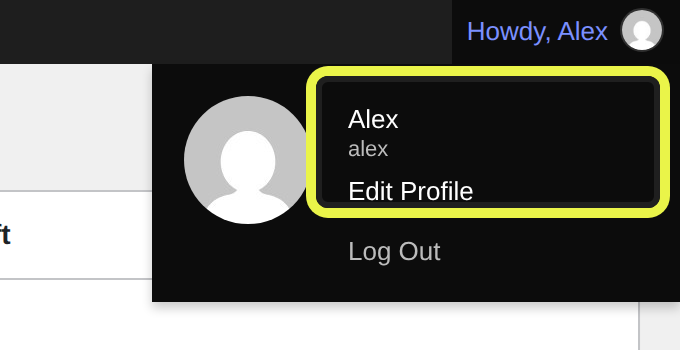
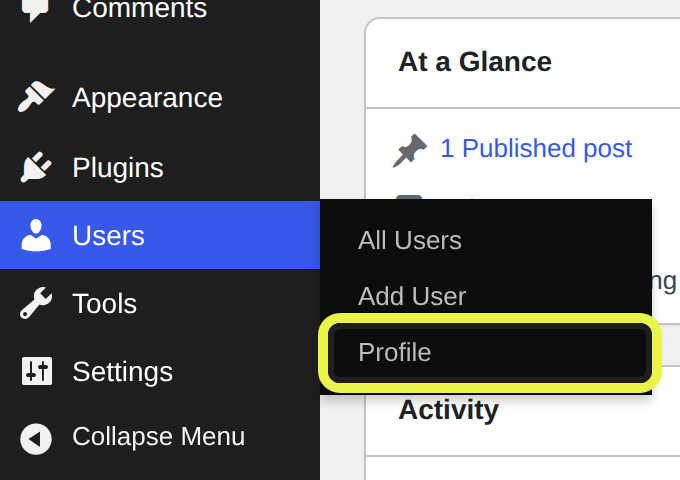
2. Click your name in the top right, where it says "Howdy," and your username, to open your profile (its menu also shows Edit Profile). Or use Users then Profile in the left menu.
3. Scroll down to Application Passwords.
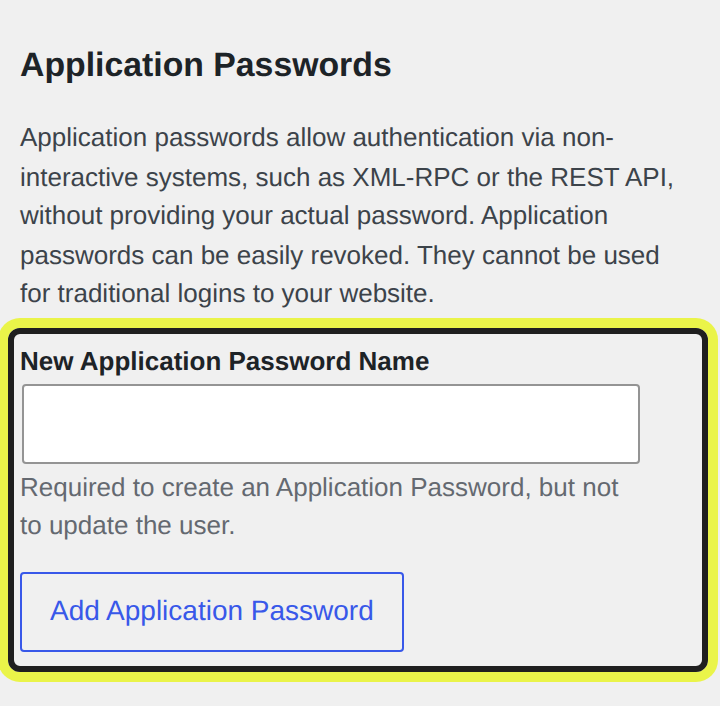
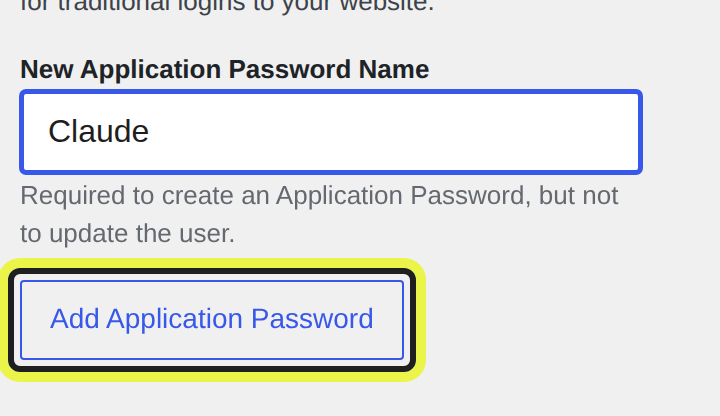
4. Type a name you'll recognise, like "Claude", in New Application Password Name and click Add Application Password.
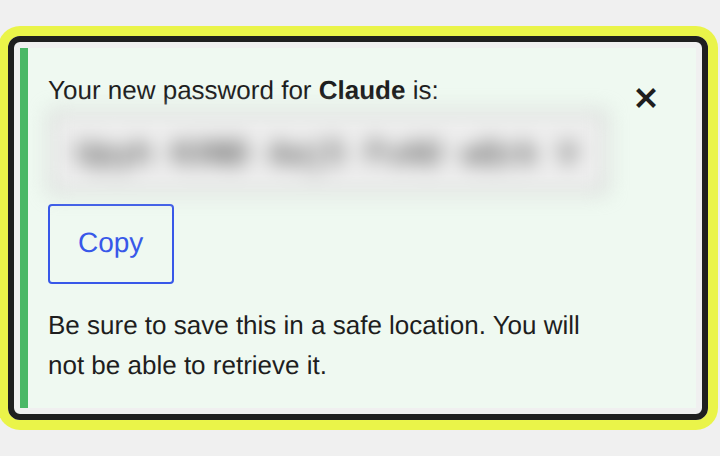
5. Copy the password WordPress shows you (there's a Copy button) into a notepad file on your computer. You won't see it again: WordPress tells you to "Be sure to save this in a safe location. You will not be able to retrieve it." It doesn't matter whether you keep the spaces between the groups of four.
Give it to the AI
- Where the file is, and your username. Tell the AI where the file with your application password is saved, and what your WordPress username is.
- A file, not the chat. Never paste the application password into the conversation, because the AI can read it from the file instead.
- Never your normal login password. The AI only needs your username and the application password, not the password you use to log in to WordPress.
Revoke it
- Revoke the application password when the job's done. Come back to the same Application Passwords section in your profile and click Revoke next to the application password you made.
- Each application password is revoked on its own. Revoking the one called "Claude" leaves any other application passwords on the account working.
So is a password from your own profile really the "API key" you went looking for?
Is a WordPress application password the same as an API key?
Yes, a WordPress application password does the job of an API key for AI, because WordPress has no separate key for pages and posts. Built into WordPress since version 5.6, an application password is an extra password you make in your own profile, alongside your normal login. The application password acts as your user account through the REST API, the back door that lets software add and edit content. There's nothing to install, no developer to hire and no key to buy. Each application password is shown only once, can't be used to log in to the WordPress dashboard and is meant for sites on HTTPS, the secure web address with a padlock.
Look up "how to connect Claude to WordPress" and, as of October 2026, Google's AI Overview (the AI-written answer at the top of the results) starts with installing a connector plugin. That's a plugin that links an AI app to your site. An application password needs nothing installed on the site at all. Plugins aren't wrong, they're just a different road. I've already covered whether you need an AI plugin at all in my main upload guide, so I won't go over that argument again here.
What a WordPress application password isn't:
- Not a plugin or developer key. Nobody issues a WordPress application password to you: you make it yourself, in your own profile, with a feature WordPress already has.
- Not a WooCommerce key. WooCommerce, the online shop plugin, has its own REST API keys (a consumer key and a consumer secret, made under WooCommerce > Settings > Advanced > REST API) for the shop's own data: products, orders and customers. For pages and posts, the key is an application password.
- Not your login password. An application password won't get anyone past the WordPress login screen, and the AI never needs the password you log in with.
Here's the thing: the name is what trips people up. You search for an "API key", WordPress gives the same job the name "application password", and it's easy to assume the key doesn't exist. It's a naming problem, not a technical one.
So if an application password can do whatever its account can, which account should it sit on?
What user role does a WordPress application password need for AI?
A WordPress application password for AI upload jobs usually needs to be on an Administrator account, because the key can only do what its user role allows. By default, WordPress lets any logged-in user make an application password for their own account, and the key acts as that account. A user role is the level of access WordPress gives an account. In standard WordPress, Editors can create and edit pages and posts, while changing menus and site settings needs the Administrator role. An Administrator's application password can do anything an Administrator can, within what WordPress and your plugins open up to the REST API, the route outside software uses. For a UK hire company, the application password sat on an Administrator account, and IvI SEO sent the content for 162 pages through it.
From my side, it's simple: the upload jobs I've run have needed Admin level. That's what I've seen on real jobs, not a rule WordPress sets.
Admin level doesn't mean the key reaches everything, though:
- Whatever the account's role allows. An application password's reach is set by the account it sits on, so one made on an Editor's account gets an Editor's reach.
- Only what WordPress and your plugins open up to the REST API. An application password can't touch a setting that WordPress or a plugin keeps away from the REST API, however senior the account.
- Not every screen. On the UK hire company job, the API couldn't reach the theme's category pages or the Yoast SEO fields on them (Yoast SEO is the plugin that handles each page's SEO title and description). Browser control did those: the AI clicks through your dashboard in a browser while you're logged in.
That's why I use both: the API for the bulk content, browser control for the rest. There's more on choosing between the REST API and browser control in my main upload guide.
Here's the bit to take seriously. In theory, an AI holding an Administrator key could delete every page on the site through the API if it was told to. That's why the read-only check in the next section, and the safety habits in the one after it, matter more than the key itself. Treat it like the spare keys to your whole site.
How do you check a WordPress application password works before AI uses it?
You check a WordPress application password works with a read-only test first: the AI asks the site which user and role it's logged in as. The AI then checks it can read the content the job will update, reports back and changes nothing on the site. Have two things ready beforehand: your username and application password saved in a file the AI can read, and the role you expect, meaning the account's level of access, such as Administrator. If the answer shows the wrong user or role, or there's no answer at all, stop before anything is uploaded. The upload script Claude wrote for IvI SEO on a UK hire company job made this read-only check its first command, kept separate from uploading the content for 162 pages.
Here's a suggested message to give the AI before anything else (my wording, so change it to suit you):
Before you change anything, check the key works and tell me which user and role it's logged in as.
Behind that message is a simple "who am I?" question. The REST API can tell the AI which account the key belongs to and what role that account has. You don't need to know how it asks.
On the UK hire company job, the upload script Claude wrote (a small program that did the uploading) made that its very first command. Next, it checked it could read the content blocks it was about to change (the theme's sections of text on each page). Uploading was a separate command, so the check itself could never change anything. At the end, the same script checked every live page against the approved copy, word for word.
When the reply comes back, here's what it means:
- The right username and role. If the reply shows the username and role you expected, the application password works and carries that role, so the AI can go ahead.
- "Too many requests" on WordPress.com. That reply doesn't mean the key is broken. WordPress.com limits how many requests you can send in a burst, so space them two seconds apart and back off for a minute, as on the UK hire company job.
- An error instead of a username and role. An error reply means nothing gets uploaded yet. Check the username and application password were copied exactly (the spaces in the groups of four don't matter). If they were, see the section on why you can't see Application Passwords, two below this one.
Check first, upload second. Once the key has passed, the job is keeping it safe until it's revoked.
How do you keep a WordPress application password safe when AI uses it?
Keep a WordPress application password safe by saving it in a file instead of the chat and revoking it when the AI's job is done. Give the AI your username and the application password, never your normal login password. Tell the AI where the file is, so the application password isn't written out in the conversation. When the job's done, revoke it with its own Revoke button in the Application Passwords section of your profile. WordPress already shows each application password only once, stores a scrambled copy rather than the password itself and doesn't accept it for logging in to the WordPress dashboard. Application passwords are meant for sites on HTTPS, the secure web address with a padlock. Until it's revoked, the application password still acts as your user account and can do whatever your role allows.
This is how I handle it:
- A separate settings file. On the UK hire company job, the username and application password sat in a separate settings file, never in the script and never in the chat.
- Username and application password, never the login password. If an AI tool or plugin ever asks for the password you log in with, that's your cue to stop and ask why.
- Named so you know which one to revoke. Calling the application password "Claude" means you can spot it in the list straight away. I'd make a new one for each job, so revoking it ends that job's access and nothing else.
- Not finished until it's revoked. My rule is that a job isn't done until its application password is revoked, which is why revoking gets its own list in the steps at the top of this page.
Why can't an application password open wp-admin? WordPress built application passwords for software talking to your site, not for people logging in, so the login screen won't take one. Through the REST API, though, the application password counts as you, with your role and everything that comes with it.
You might have seen me say in my other AI guides that the AI never needs your password. That still stands. With browser control, you log in and the AI works inside your session. With an application password, the AI holds a separate key you can revoke. Either way, the AI never gets your login password.
One line I'd suggest adding to your brief: "Use it, but never show it back to me." That way the application password doesn't end up in the chat from either side. The Application Passwords list also shows when each one was last used and its last IP address (the internet address of the device that used it). That's handy for spotting a key you'd forgotten about.
All of this assumes the Application Passwords section is there when you scroll down your profile. Sometimes it isn't.
Why can't you see Application Passwords in WordPress?
You usually can't see Application Passwords in WordPress because your account doesn't have permission to use them on that site. The fix is to ask for an Administrator account, or for the application password to be made while logged in to an account that has permission. An Administrator can also make one for another user from that user's profile. Other possible causes are a plugin or the host switching them off, WordPress older than version 5.6, or a site without HTTPS, the secure padlock web address. Without a key, browser control is the fallback: you log in to the WordPress dashboard yourself and the AI clicks through it inside your session. Permission limits left IvI SEO with no API access on a UK life sciences company's site, so the AI worked in Jack's logged-in session: 1,153 saves through Yoast SEO's bulk editor, zero failures.
Every time I've found the Application Passwords section missing on a site, it's been permissions. Every single time. So the fix is usually a conversation, not a setting:
- Ask for an Administrator account. That's the route I take. It helps to say what the AI job is, so whoever runs the site knows what they're agreeing to.
- Make it on the account it's for. An application password acts as the account it belongs to, so it has to be made for the account the AI will use. Don't borrow someone else's login to get round a missing section.
- On WordPress.com. WordPress.com has two kinds of application password: account-wide ones, under Two-Step Authentication in your WordPress.com account's security settings, and site-specific ones, in the site's dashboard under Users > Profile. The site-specific kind applies to plugin-enabled sites on the Personal, Premium, Business and Commerce plans. Two-step authentication (WordPress.com's extra sign-in check) must be on before you can make one.
- Other causes. I haven't hit these myself, but they're real. A plugin or the host can switch application passwords off (Wordfence, a security plugin, has a setting that does exactly that). WordPress before version 5.6 doesn't have them, and a site without HTTPS won't offer them by default.
And if the account can't be sorted? You're not stuck. Browser control needs no key, and the AI can only do what your account is allowed to do. I've covered using browser control instead in my main upload guide.
That's how the UK life sciences job got done. I usually use the WordPress API on client sites, but on that one, permission limits meant I logged in myself. The AI worked in my session and never needed the password. The full write-up of those 1,153 saves covers the brief and the checks.
No key isn't a dead end.
Want a hand deciding whether AI uploads are worth it?
You can get a hand deciding whether AI uploads are worth it for your WordPress site, or make an application password and have a go yourself. IvI SEO's local SEO service can help you decide, with an honest answer on whether your uploads are worth automating or quicker to do by hand. The do-it-yourself route starts free: the application password is built into WordPress, with nothing to install. The key is the easy bit: the real work is a written brief that tells the AI exactly what goes where.
Doing it yourself? The steps at the top of this page get you the key. The sections after them cover which account it sits on, the read-only check and keeping it safe. After that, write your brief: do one upload by hand and note every field as you go.
Rather have a second opinion before you hand anything to an AI? Ask through IvI SEO's local SEO service, and I'll tell you straight whether automating your uploads is worth it. (If the honest answer is "just do them by hand", that's what you'll hear. Not my sharpest business move.)
Either way, revoke the key when you're done.